
In the previous article (Part 5), we learned how to extract text and numbers from spreadsheet cells using Range.getValue(). By now, you should have a solid grasp of that two-step mental model: grabbing the drawer handle (getRange), opening the drawer, and retrieving the note inside (getValue).
Once you can retrieve data, the next logical step is wanting to write calculated results or automated messages directly back into your spreadsheet cells!
In this 6th installment, we will take a deep dive into an essential method: Range.setValue(), which allows you to write any text, numbers, dates, or formulas into specific cells whenever you want!
Using our familiar “Seicomart (Secoma) Hot Chef Price List” as an example, we will walk through practical hands-on examples, business use cases, and common beginner traps with clear, approachable explanations.
1. What Exactly is Range.setValue()?
Range.setValue() is an instruction that allows your script to write (or overwrite) data—such as text, numbers, or dates—into a single targeted cell (Range object).
Understanding It Through the “House, Room, Furniture” Analogy
Let’s review the “House, Room, Furniture” analogy we have been using throughout this series:
- [House] = The entire Spreadsheet file (
SpreadsheetApp.getActiveSpreadsheet()) - [Room] = An individual sheet tab (
ss.getActiveSheet()) - [Furniture] = A cell or range of cells (
sheet.getRange("C4"))
Range.setValue() corresponds to placing a brand-new note (data) directly inside that “piece of furniture (drawer)” to save it.
Basic Code Syntax
// 1. Specify the cell (drawer) where you want to write data
var range = sheet.getRange("C4");

// 2. Write the value into that cell
range.setValue("Content to write");
You can also chain these operations together using a dot (.) on a single line: sheet.getRange("C4").setValue("Content to write");.
Comparing getValue() and setValue()
| Operation | Method | Role | Real-World Image |
| Read | Range.getValue() |
Brings the cell content into GAS | Open a drawer and read the note |
| Write | Range.setValue() |
Writes data from GAS into a cell | Place a new note into the drawer |
By combining these two commands, you complete a standard automation cycle: “Read data from the sheet (getValue) ➡ Process or calculate in GAS ➡ Write the result back to the sheet (setValue)”!
2. STEP 1: Preparation! Create the “Secoma Hot Chef Price List”
First, let’s prepare a practice sheet to interact with via GAS. If you already have the sheet from Part 5, feel free to reuse it.
Steps
- Create a new Google Spreadsheet and name it “Sapporo Secoma Manager”.
- Rename the sheet tab at the bottom to “Secoma Price List”.
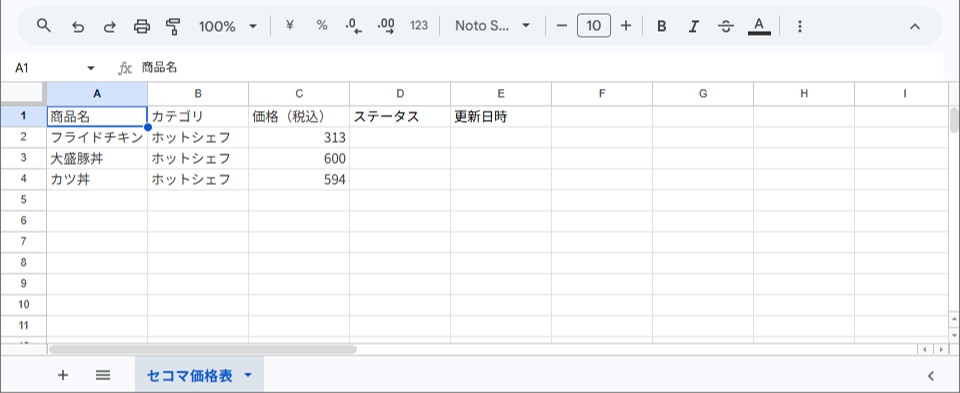
- Enter the table data as shown below (Columns D and E will be written via GAS later, so you can leave them empty).
| A | B | C | D | E | |
| 1 | Product Name | Category | Price (Tax Incl.) | Status | Updated At |
| 2 | Fried Chicken | Hot Chef | 313 | ||
| 3 | Large Pork Rice Bowl | Hot Chef | 600 | ||
| 4 | Katsudon | Hot Chef | 594 |
- Once entered, ensure that the “Secoma Price List” tab remains active (open).
3. STEP 2: [Hands-on] Writing Text and Numbers Automatically!
With the setup complete, open the GAS editor and start writing some code.
We will execute two operations automatically using GAS:
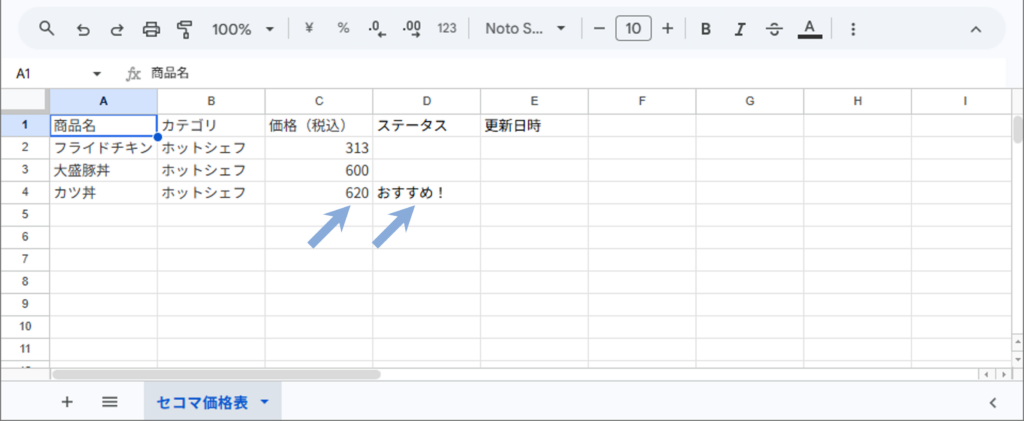
- Write the string “Recommended!” into Cell D4
- Update (overwrite) the price of Katsudon in Cell C4 with the revised numeric value “620”
1. Enter the Code
From the spreadsheet menu, navigate to Extensions > Apps Script, remove any default code in the editor, and paste the following snippet:
function writeHotChefData() {
  // 1. Get the "House (file)" and "Room (sheet)"
  var ss = SpreadsheetApp.getActiveSpreadsheet();
  var sheet = ss.getActiveSheet();

  // 2. Target cell D4 and write a [string]: "Recommended!"
  var statusRange = sheet.getRange("D4");
  statusRange.setValue("Recommended!");

  // 3. Target cell C4 (Katsudon price) and write a [number]: 620 (overwrite)
  var priceRange = sheet.getRange("C4");
  priceRange.setValue(620);

  // 4. Verify completion in the execution log
  Logger.log("Cell writing completed successfully!");
}
2. Line-by-Line Code Breakdown
statusRange.setValue("Recommended!");- When writing a string of text, always enclose it in double quotes
" ".
- When writing a string of text, always enclose it in double quotes
priceRange.setValue(620);- When writing a numeric value, write the number directly without quotation marks. This ensures Google Sheets treats it as actual numeric data for arithmetic operations.
3. Save and Run
- Click the Save (floppy disk icon) at the top of the editor.
- Make sure the selected function is
writeHotChefData, then click Run. - Switch back to your spreadsheet window and examine the updates!
[Execution Verification]
- Cell D4 now displays “Recommended!”!
- Cell C4 instantly updated from “594” to “620”!
Being able to control spreadsheet values dynamically through your own code is one of the most rewarding milestones in automation, isn’t it?
4. STEP 3: Highly Practical! 3 Advanced Use Cases for setValue()
Beyond inserting static text or numbers, let’s explore three practical patterns frequently leveraged in professional workflows.
Pattern 1: Write Calculation Results to Another Cell (getValue + setValue)
This example reads the price from column C, applies a 10% discount (sale price), and writes the result into the neighboring cell.
function calculateDiscount() {
  var sheet = SpreadsheetApp.getActiveSpreadsheet().getActiveSheet();

  // 1. Get the original price of Katsudon (Cell C4)
  var originalPrice = sheet.getRange("C4").getValue(); // Retrieves 620

  // 2. Calculate a 10% discount (multiply by 0.9)
  var discountPrice = originalPrice * 0.9;

  // 3. Write the calculated result into Cell D4
  sheet.getRange("D4").setValue("Sale Price: " + discountPrice + " yen");
}
Pattern 2: Record an Updated Timestamp (Current Time)
When automating updates, keeping track of precisely when changes occurred is standard practice. Passing JavaScript’s new Date() populates the cell with the current date and time automatically.
function recordTimestamp() {
  var sheet = SpreadsheetApp.getActiveSpreadsheet().getActiveSheet();

  // Write the current timestamp into Cell E4
  sheet.getRange("E4").setValue(new Date());
}
*The spreadsheet will format this cleanly as a date value, such as “2026/01/05 10:40”.
Pattern 3: Write a Spreadsheet Formula
When you pass a string starting with an equal sign (=) to setValue(), Google Sheets recognizes it as a spreadsheet formula and calculates it automatically.
function insertFormula() {
  var sheet = SpreadsheetApp.getActiveSpreadsheet().getActiveSheet();

  // Write a SUM function into Cell C5
  sheet.getRange("C5").setValue("=SUM(C2:C4)");
}
*While there is a dedicated method called setFormula(), passing setValue("=SUM(...)") achieves the exact same result.
5. Handy to Know! List of Data Types You Can Pass to setValue()
Here is an overview of how different data types passed to setValue() are handled by Google Sheets:
| Data Type | Code Example | Result in Cell | Handling in Sheets |
| String | range.setValue("Seicomart") |
Seicomart |
Left-aligned text |
| Number | range.setValue(620) |
620 |
Right-aligned number (calculable) |
| Boolean | range.setValue(true) |
TRUE |
Handled as boolean/checkbox logic |
| Date | range.setValue(new Date()) |
2026/09/20 10:40:00 |
Serial date format |
| Formula | range.setValue("=C2*1.1") |
Calculated number (e.g., 344.3) |
Evaluated and executed as a formula |
| Blank (Clear) | range.setValue("") |
(Visually empty) | Sets an empty string |
6. 5 Common Traps Beginners Fall Into and How to Solve Them
Here are five widespread pitfalls and errors that beginners encounter when working with setValue(). Learning them now will save you hours of debugging down the line!
Trap 1: Confusing setValue() with setValues() (Plural)
In GAS, alongside setValue() (singular), there is a completely distinct method called setValues() (plural, ending with an ‘s’).
setValue()(singular): Writes a single value to one cell.setValues()(plural): Writes a 2D array[[data1, data2]]across a multi-cell range in bulk.
[Common Mistake & Symptom]
If you accidentally call setValue("Sold Out") on a large multi-cell range like getRange("A2:C4"), every single cell in that range will be overwritten with the text “Sold Out”!
[Solution]
- Writing to one cell ➡
setValue() - Writing to multiple cells or an entire table at once ➡
setValues(). Keep this distinction clear!
Trap 2: Wrapping Numbers in Double Quotes by Mistake
// ✕ Incorrect: Stored as a string
sheet.getRange("C4").setValue("620");

// ◯ Correct: Stored as a numeric value
sheet.getRange("C4").setValue(620);
Wrapping a number in quotes like "620" causes Sheets to interpret it as uncalculable text, aligning it to the left. Consequently, it will be skipped by mathematical functions like SUM().
Always remember: “Do not wrap numbers intended for calculations in quotes!”
Trap 3: Writing sheet.setValue() Resulting in a TypeError
// ✕ Error-producing code
sheet.setValue("C4", 620);
// Error message: TypeError: sheet.setValue is not a function
setValue() is a method belonging to the Range (cell/furniture), not to the Sheet (room).
Always follow the correct hierarchy: “Sheet ➡ Specify Cell Range ➡ Write Value”, as in sheet.getRange("C4").setValue(620).
Trap 4: Overwriting Existing Data Without Warning
setValue() will overwrite existing values without showing any warning popups or confirmation dialogues.
To prevent accidents—like unintentionally overwriting a critical calculation formula—always double-check that your cell coordinates in getRange("C4") point to the intended location before running the script.
Trap 5: setValue("") Doesn’t Fully Reset the Cell
Using setValue("") (empty string) to clear a cell may make it look visually empty, but internally it leaves behind a string of zero length. When you want to completely reset a cell—including formulas and formatting—it is safer to use Range.clearContent() or Range.clear(), which we will cover in future articles.
7. Summary & Next Preview
In this tutorial, we covered everything you need to know about writing data into designated cells using Range.setValue().
Key Takeaways
- Select the target cell with
getRange()and set its value using.setValue() - Enclose text strings in
" ", while passing raw numbers without quotes for calculations - Use the singular
setValue()when updating a single cell - Always verify cell ranges carefully, as
setValue()will silently overwrite existing contents
You now possess both foundational pillars of spreadsheet manipulation: reading data (getValue) and writing data (setValue)!
However, in daily operations, you’ll rarely just overwrite the exact same cell (like C4). Instead, you will frequently want to append new records to the very bottom of an existing table.
In our next installment (Part 7), we will explore the ultra-convenient method Sheet.appendRow(), which automatically detects the last row and inserts new data right beneath it! Mastering this will open doors to building automated logging tools and form aggregators. Stay tuned!
